

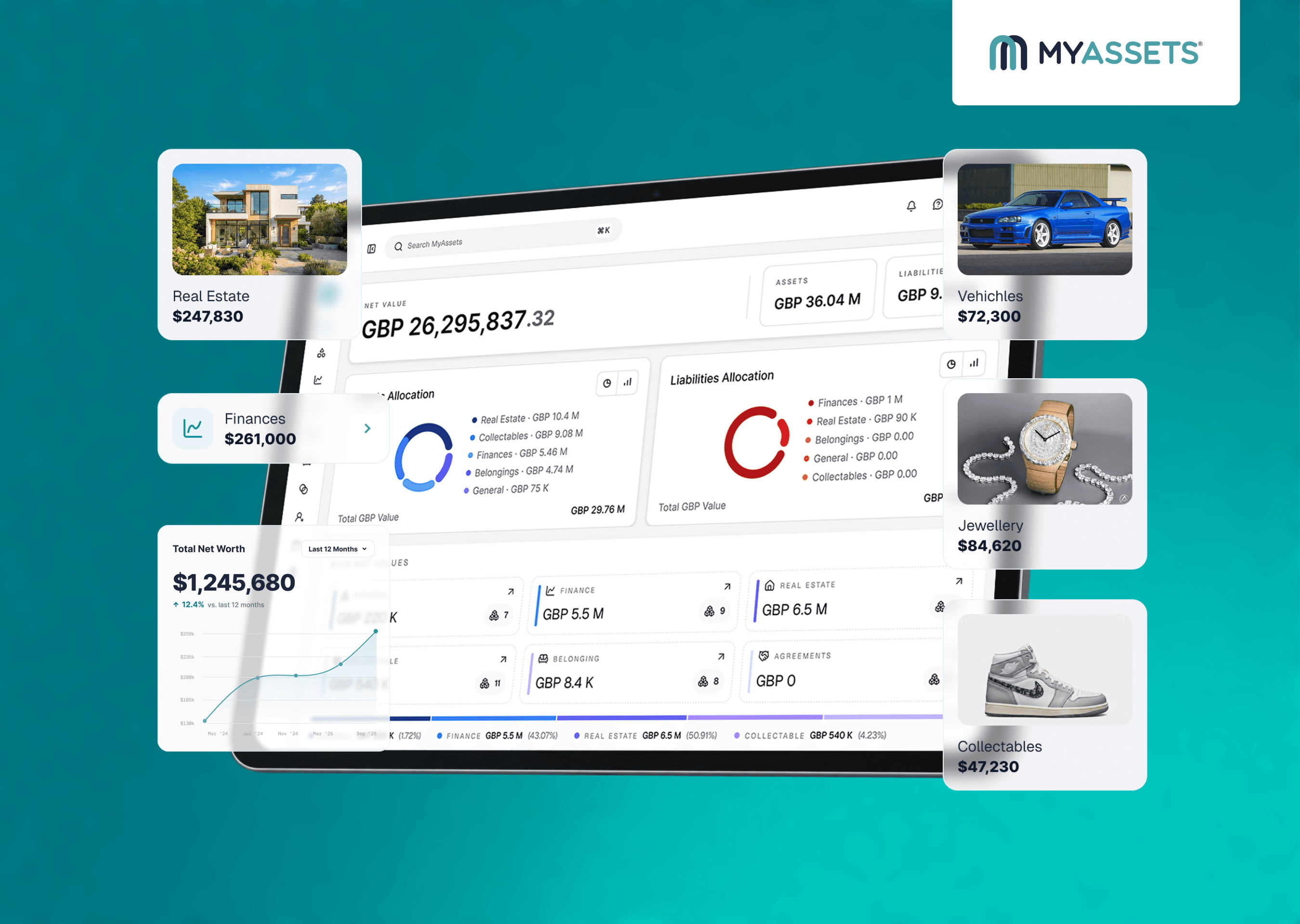
If you’ve read the first article in this series, then you already know about the extensive changes that MyAssets has gone through in the last two years since its beta launch in 2024.
In this article, we get down to business in using the six main categories of the platform:
- General
- Finances
- Real Estate
- Collectables
- Belongings
- Agreements
In a nutshell, General lets you add and organise assets before categorising them. Finances tracks cash and bank accounts and investments. Real Estate manages homes, rental properties, commercial buildings, and land. Collectables helps you catalogue and monitor art, antiques, and prized collections. Belongings records household items, valuables, and important documentation. Agreements organises loans, mortgages, rental leases, and insurance agreements.
Together, these categories provide a clear picture of your assets, liabilities, and overall net worth. Whether you’re managing properties, investments, personal valuables, or financial commitments, MyAssets offers a practical way to maintain an overview of your assets, support better financial planning, and make more informed decisions about your financial future.
How to Use the Main Categories of MyAssets
The beauty of the platform is that there is no “right” or “wrong” way of using MyAssets. The platform lets you manage and organise your assets at any time, no matter which category you start with.
Use General as a quick add and convenient catch-all
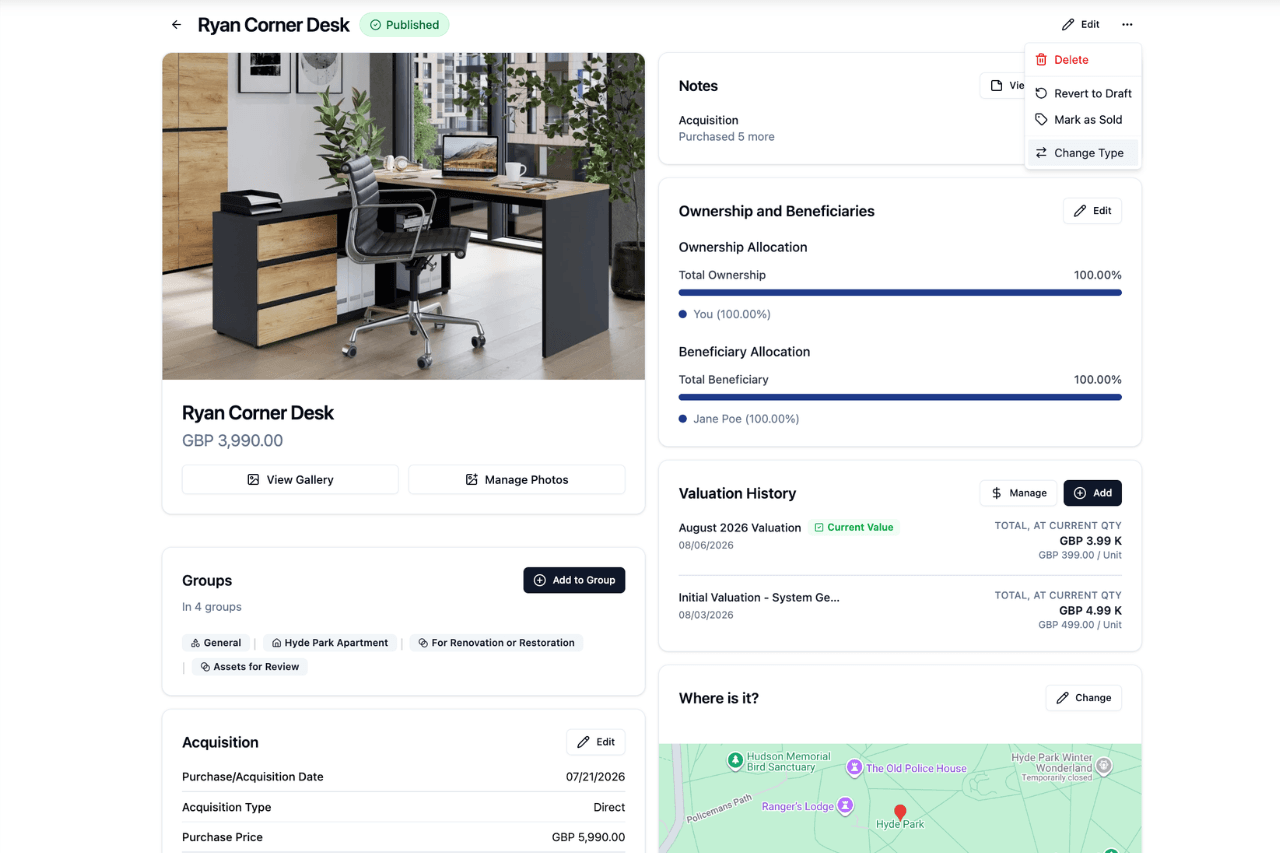
Don’t have time to organise your assets yet? General is the category you can use to upload new assets quickly. It’s best used for tangible assets, so anything you can add in other categories (e.g. Real Estate, Collectables, Belongings) can be added in General Assets.
Once you’re ready to organise and manage your assets into their proper categories, you can simply edit the asset page and select Change Type, which allows you to change General Assets into a different category, such as Real Estate, Collectables, and Belongings.
Add property in Real Estate
Once you’re ready to start leveraging your account, we recommend adding your properties to Real Estate first. The platform not only gives you a comprehensive overview of your property portfolio it also allows you to use your properties as locations for your other assets.
There are two types of real estate assets you can add.
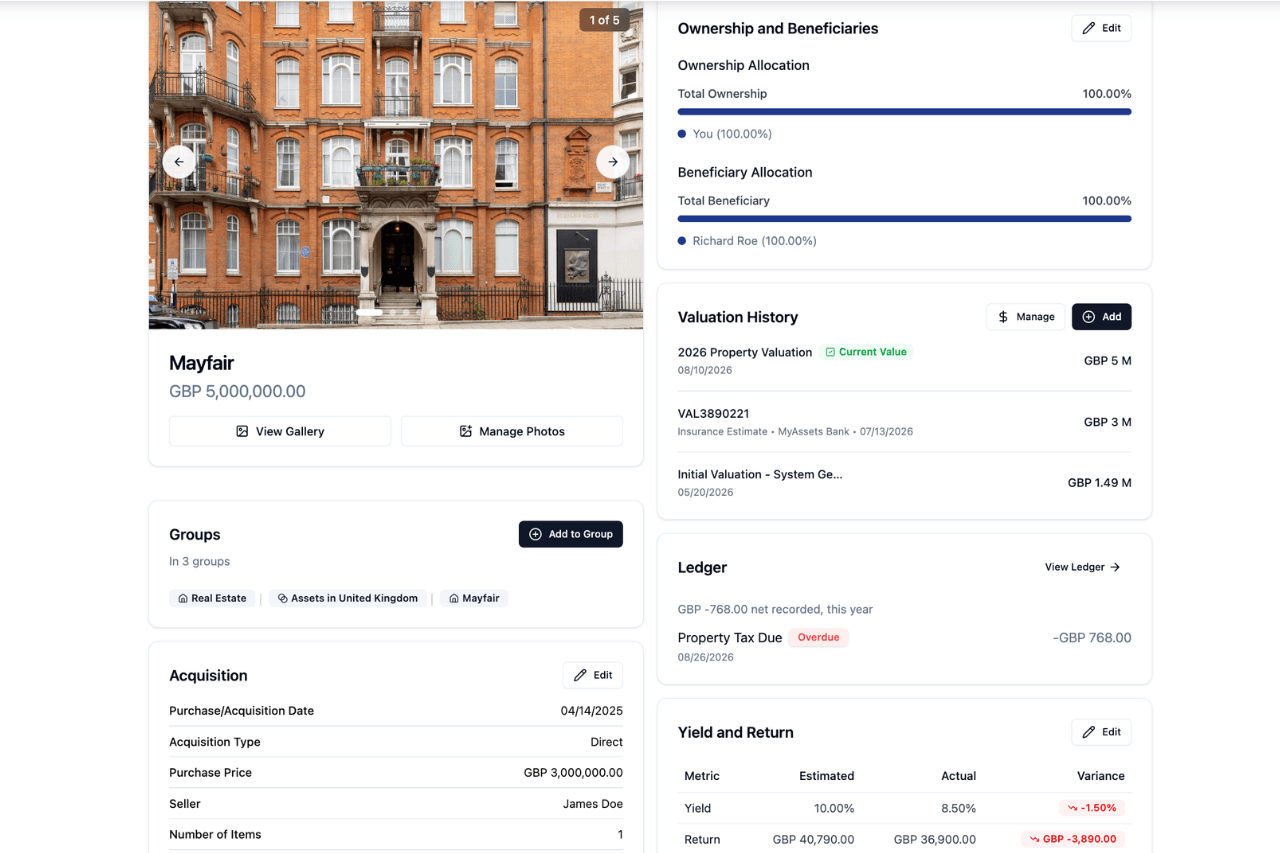
Owned
This includes real estate that you own, including assets you rent out to tenants.
The creation modal for this lets you include the following details:
- Name
- Address
- Purchase/Acquisition Details
- Valuation
There are additional fields you can also include, such as notes, personal reference number, invoice number, and even documents and images.
Rented
This includes real estate that you're currently renting.
The creation modal for this is less comprehensive than the Owned modal, but it allows you to include important details such as:
- Name
- Address
- Start Date
Like the Owned modal, you can add the same additional fields (e.g. notes, personal reference number, invoice number, and documents and images).
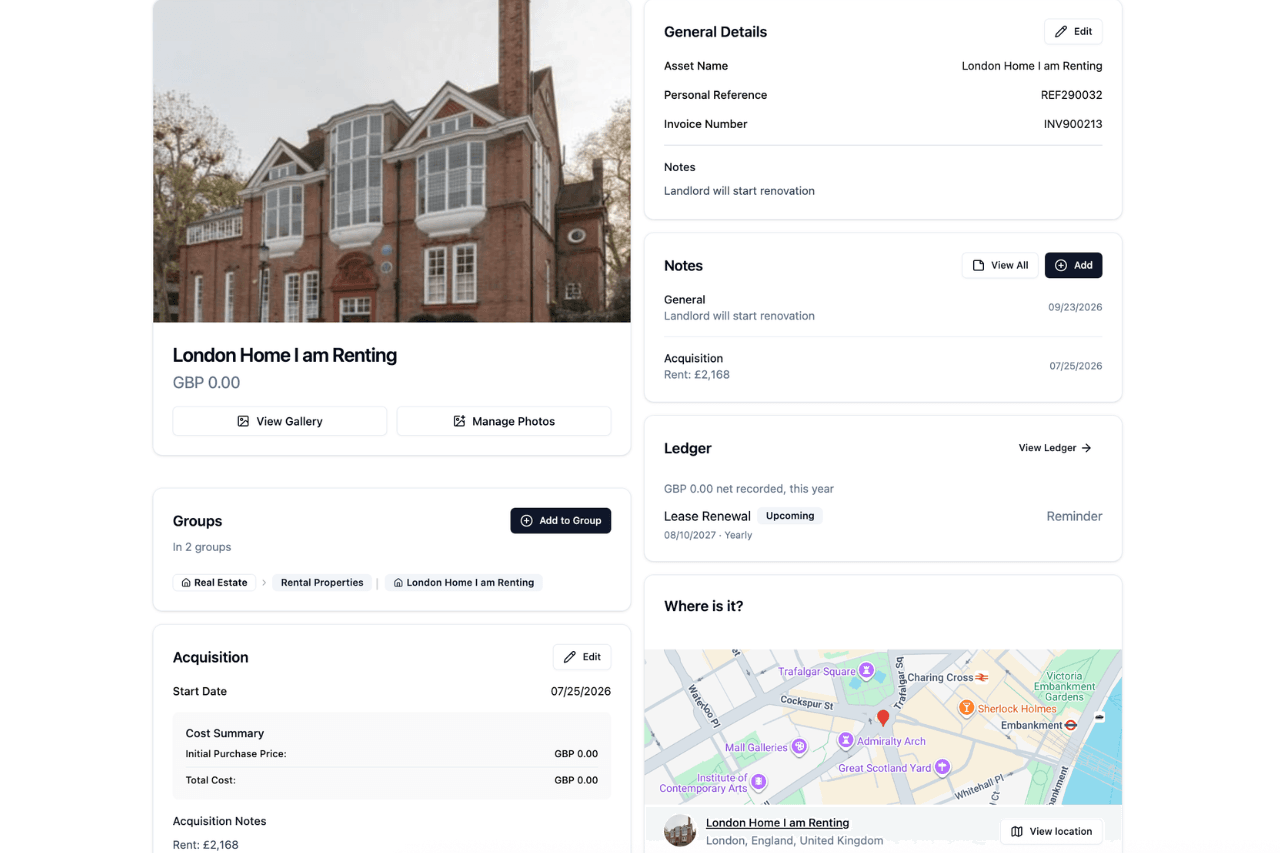
The address you add gives a location map for your properties as well as linked assets. You can create comprehensive property profiles by linking Mortgage/Loan Agreements and Rental/Lease Agreements to your properties. This connects the liabilities or assets relevant to your properties, giving you a full overview of your property’s net value.
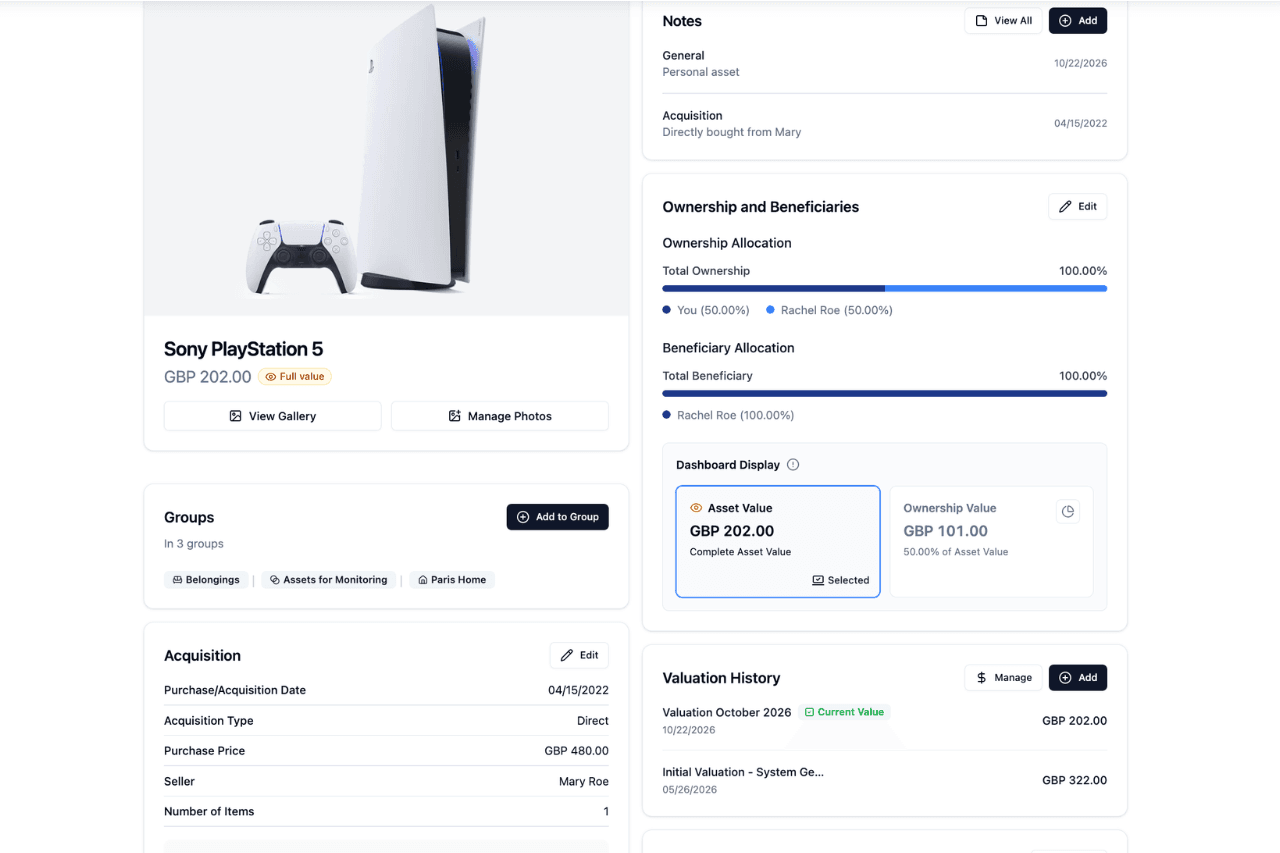
Catalog personal valuables with Belongings
Belongings works similarly to General, but this category allows you to label your valuables into its specific type. To give you a better idea of how Belongings works, a few of the household items you can add to this category:
- Heirloom Items
- Furniture
- Antiques
- Electronics
- Devices
- Clothing and Footwear
This gives you a digital and visual inventory of everything you own, allowing you to track each item’s net value and location over time.
Display art and rare collections in Collectables
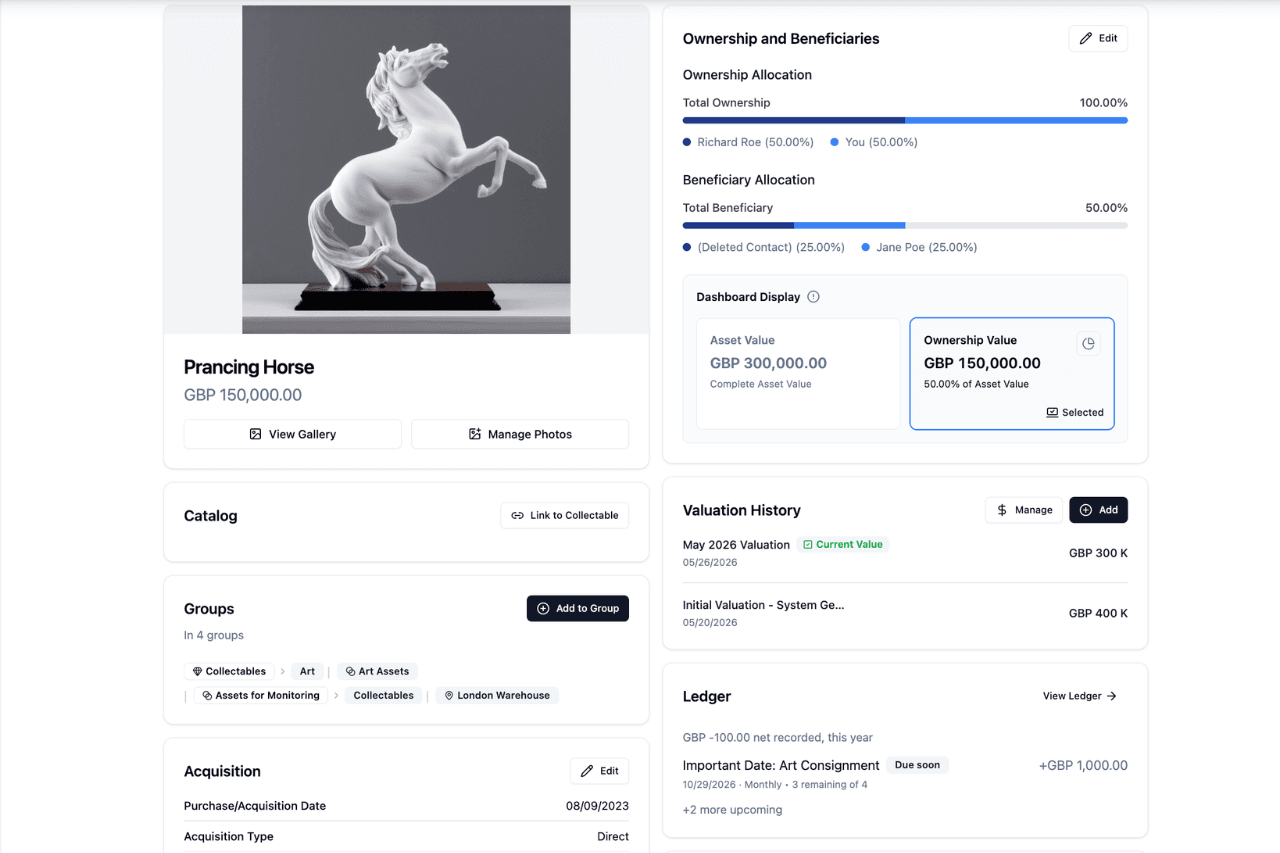
Create a visual gallery for your precious collections with Collectables. Your art and collectables can be beautifully displayed with the “Card View”, but you also have the option to use the “List View” to get an overview of key details for your collections.
Collectables currently has four subcategories you can choose from, allowing you to curate your collections to your preferences.
Art
Add your art pieces to this subcategory, which lets you create a comprehensive profile for each work. The key details you can add include:
- Art Title
- Artist Name
- Art Type
- Art Style
- Year of Creation
- Purchase/Acquisition Details
- Valuation
We also have a Catalog Database that is integrated with the third-party provider ArtFacts, an international art database and marketplace. This gives users an artist profile and relevant exhibitions for their uploaded artworks.
Other Collectables
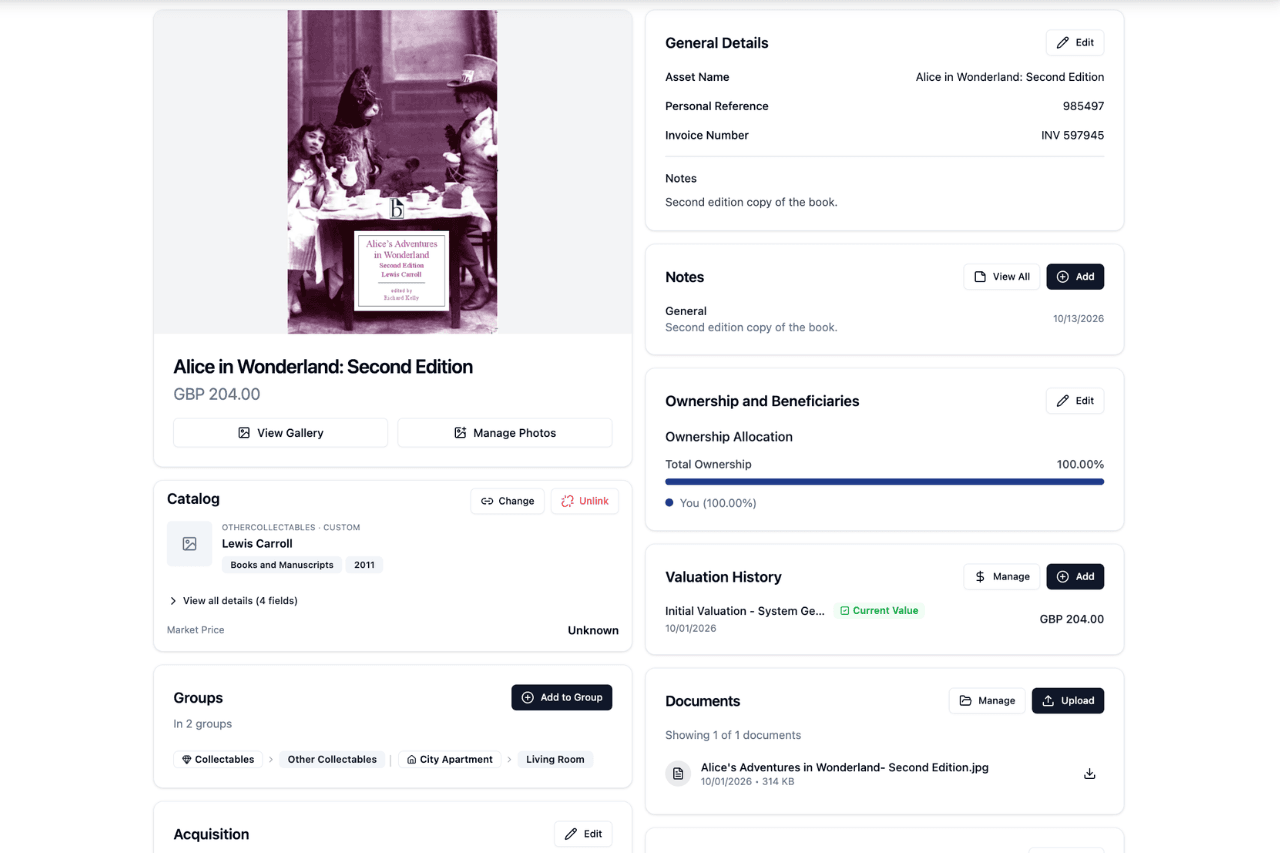
We know that collections aren’t just limited to art. This category ensures that you can track any and every type of collectable you own. From antiques and film memorabilia to vintage cards, books, and collectable cards.
The key details you can add include:
- Collectable Name
- Brand/Manufacturer/Creator
- Collectable Type
- Year of Creation
- Purchase/Acquisition Details
- Valuation
You also have the option to use the Link to Collectable feature, which saves key catalog fields as read-only data, such as Brand/Manufacturer/Creator, Collectable Name, and Collectable Type.
Collector Sneakers
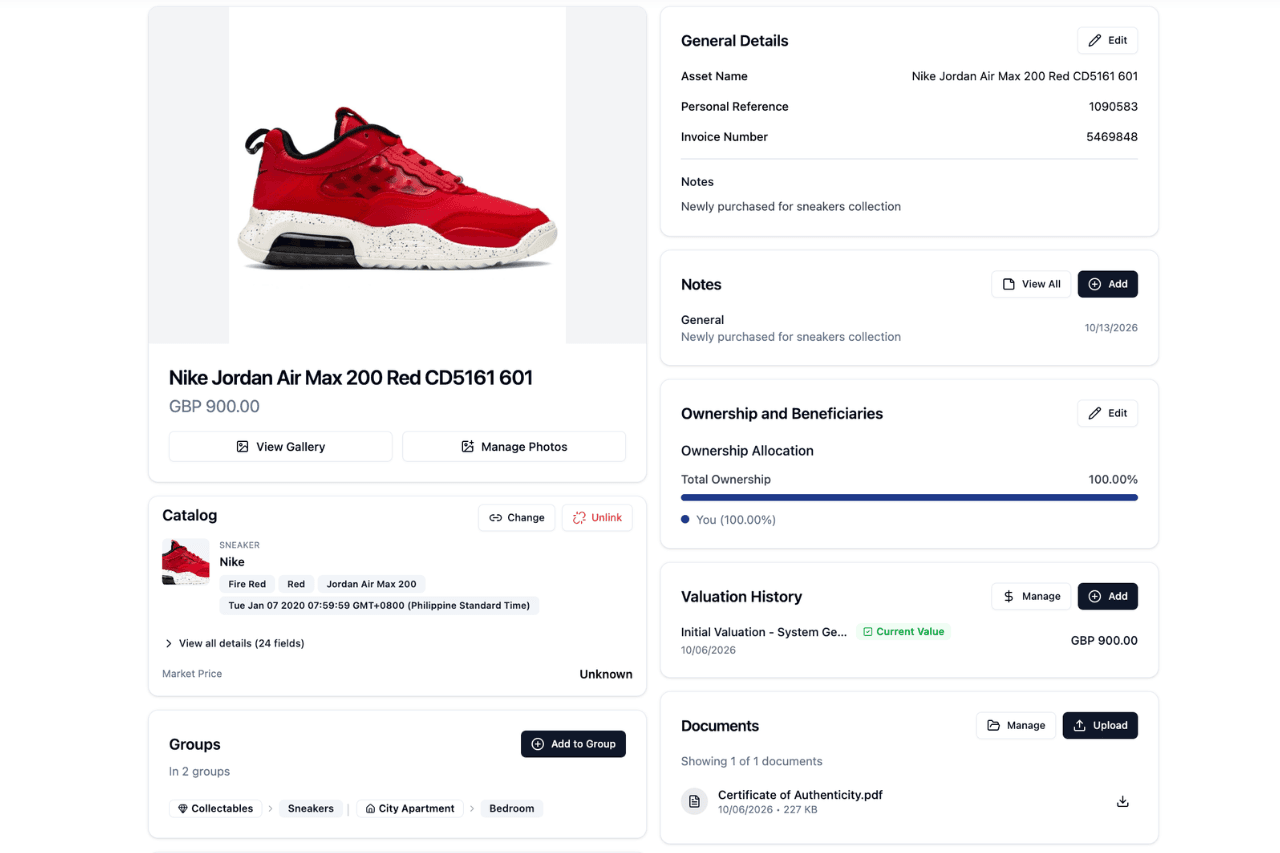
We have a dedicated subcategory for collector sneakers, allowing you to display all of your dead-stock grails and limited edition pairs. You have the option to add your sneakers in MyAssets either by using the Search Collectables or the Create Custom Item.
Using the Search Collectables option allows you to find and add sneakers from our Catalog.
This automatically adds a Link to Collectable for your sneakers, with multiple saved catalog fields using the information from our database, such as its brand, category, colour, and size unit.
The catalog fields may vary depending on the available information about your sneakers. However, you still have the option to add other types of information using MyAssets’ creation modals.
Meanwhile, using the Create Custom Item option allows you to add sneakers that are not available in our Catalog. This ensures that you can create a comprehensive profile of all your valuable sneakers, whether they’re in our Catalog database or not.
Watches
Like Collector Sneakers, the Watches subcategory offers both the Search Collectables and the Create Custom Item options for you to add your collections of timepieces.
Once you’ve added basic detail about your watch, you can add more information with the MyAssets creation modal. This also automatically adds a Link to Collectable for your watch, with catalog fields using the information from our database, such as its brand, name, case details, dial details, and calibre display.
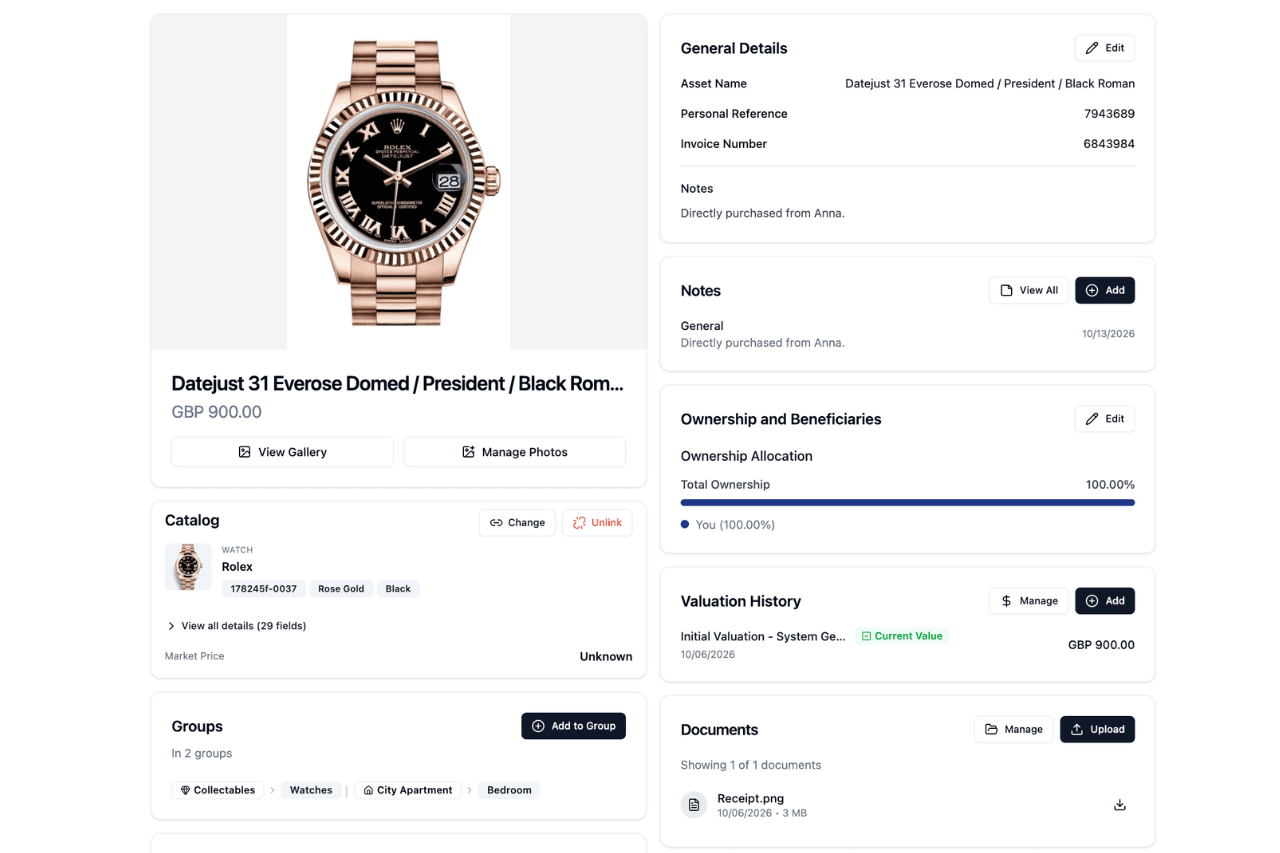
The catalog fields may vary depending on the available information about your watch. If your timepiece is not available in the search results, then you can use the Create Custom Item option. This ensures that you can add your watch collection and build a secure digital display in the platform.
Add mortgages, loans, leases, and insurance policies to Agreements
Agreements allow you to link mortgages, loans, leases and policies to other assets in the platform, giving you a complete overview of your financial commitments.
Agreements have three subcategories that you can use.
Loan and Mortgage Agreements
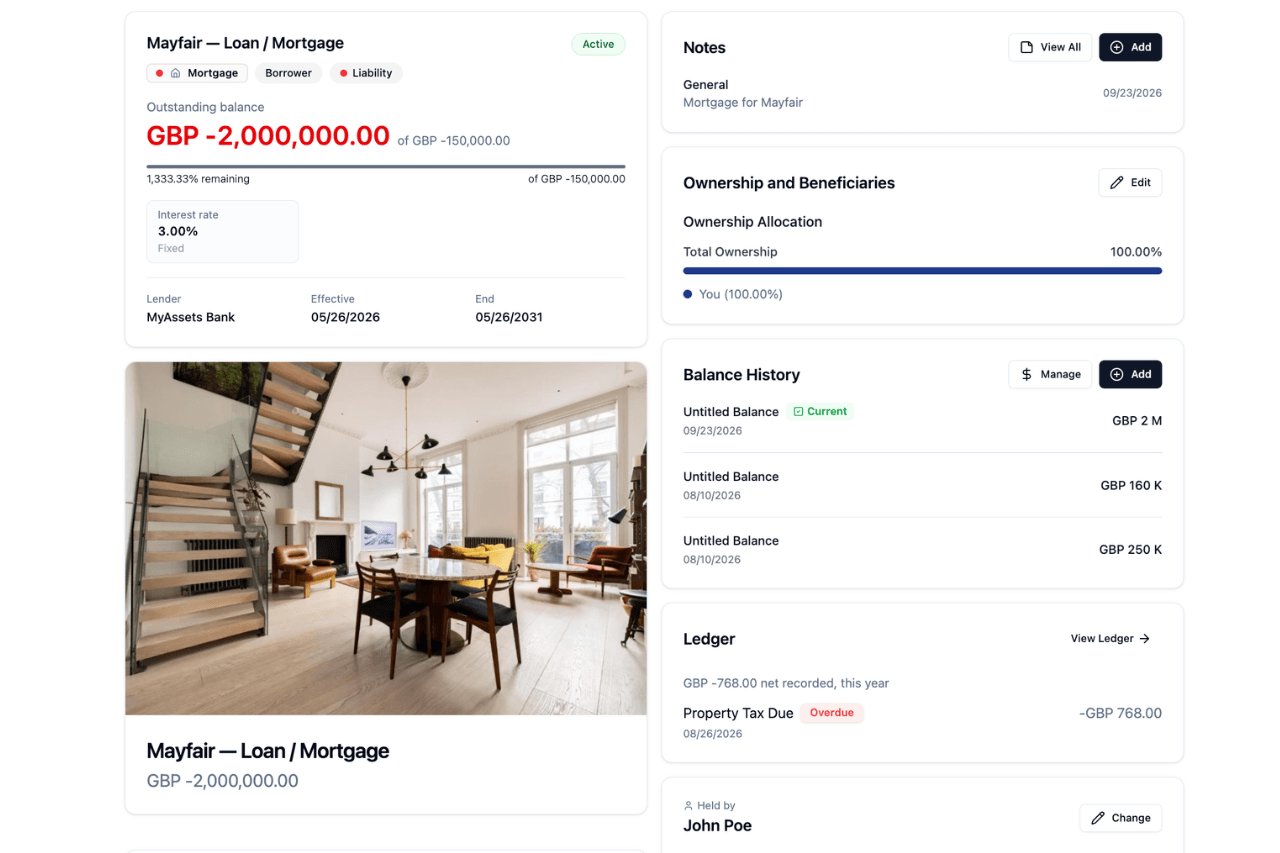
You can add loan and mortgage agreements as a liability or an asset. This allows you to include the following details:
- Agreement Title
- Effective Date
- Lender’s Name/Borrower’s Name
- Loan Terms (Original Principal, Outstanding Balance, Interest, Term)
- Ledger (Income, Expenses, Reminders)
It also includes additional fields where you can add notes, external references (such as a policy number or lease reference), and documents.
You can link these loan and mortgage agreements to existing assets and properties on the platform. This connects the outstanding balance as a liability (or asset, if you are the lender) to the linked asset.
Rental and Lease Agreements
This subcategory is designed for rental and leased properties, serving as a complementary feature for Real Estate.
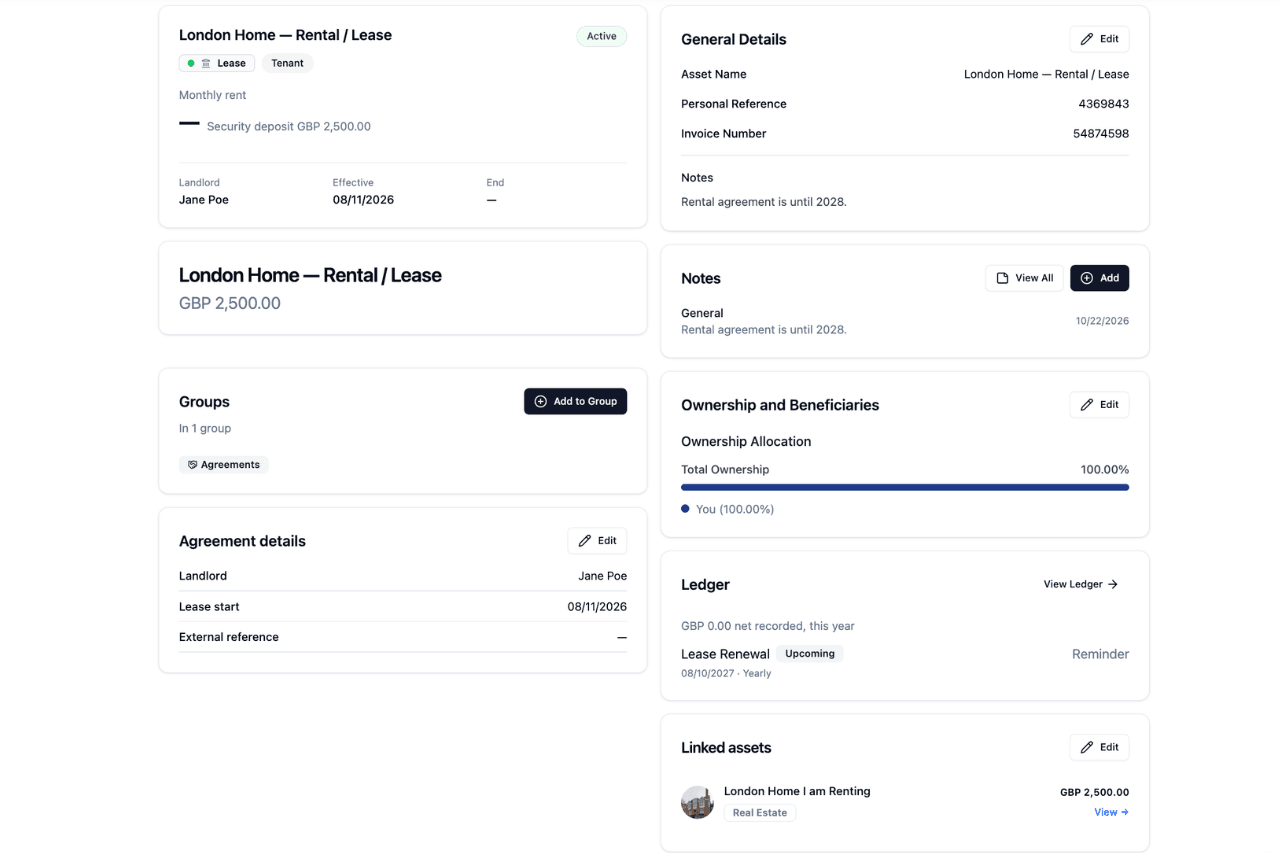
Like the loan and mortgage agreements, rental and lease agreements can be defined as a liability (if you are renting) or an asset (if you are leasing to others). The information you can add includes the following:
- Agreement Title
- Effective Date
- Landlord/Tenant
- Security Deposit
- Ledger (Income, Expenses, Reminders)
A rental or lease agreement becomes more effective when it’s linked to the appropriate property in Real Estate.
Insurance Agreements
Connect your existing insurance policies to your assets in the platform. This helps you keep track of your current policy inventory, ensuring you receive full payouts during claims and preventing unnecessary fees for coverage.
Our insurance agreement modal allows you to include the following information:
- Insurance Title
- Effective Date
- Policy Type
- Insurance/Provider
- Policy Terms (Sum Assured, Surrender Value, Deductible)
- Ledger (Income, Expenses, Reminders)
The fields may vary, depending on the policy type you choose, ranging from life and health to travel and multi-coverage.
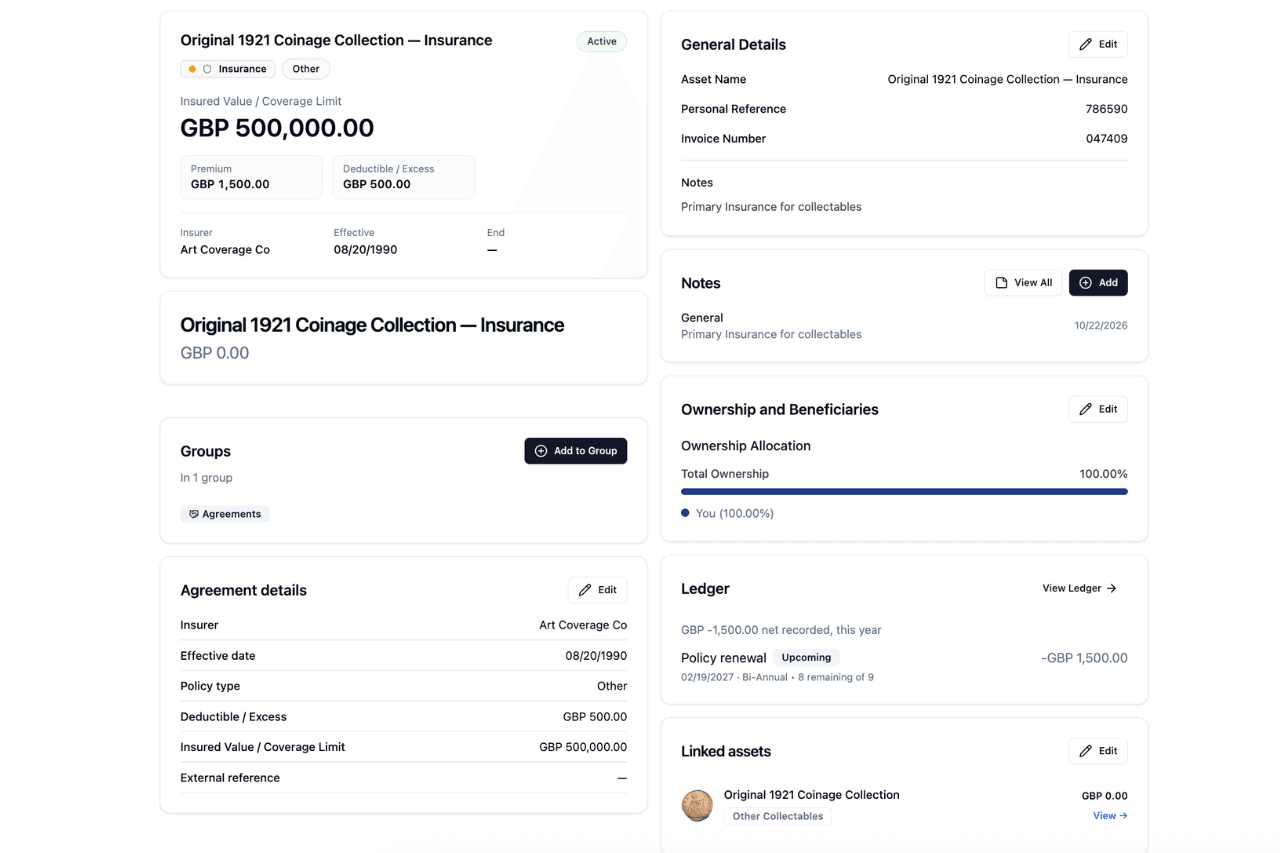
Agreements centralises the connections between your assets and financial commitments, giving you a clear picture of how each one affects your total net value.
Aggregate financial accounts in Finances
Finances allows you to organise and track your financial accounts, investments, and cryptocurrencies in one place. It’s a simplified process for financial management, and it gives you an integrated view of what’s going on with your finances.
Finances has three subcategories you can leverage.
Cash & Banking
This subcategory enables you to either automatically connect global financial institutions or manually add your financial accounts, depending on your preference and/or the availability of your bank institution with our secure third-party provider, Plaid.
The Cash & Banking account types you can add are:
- Current account
- Savings
- Credit Card
- Mortgage
- Loan
- Cash
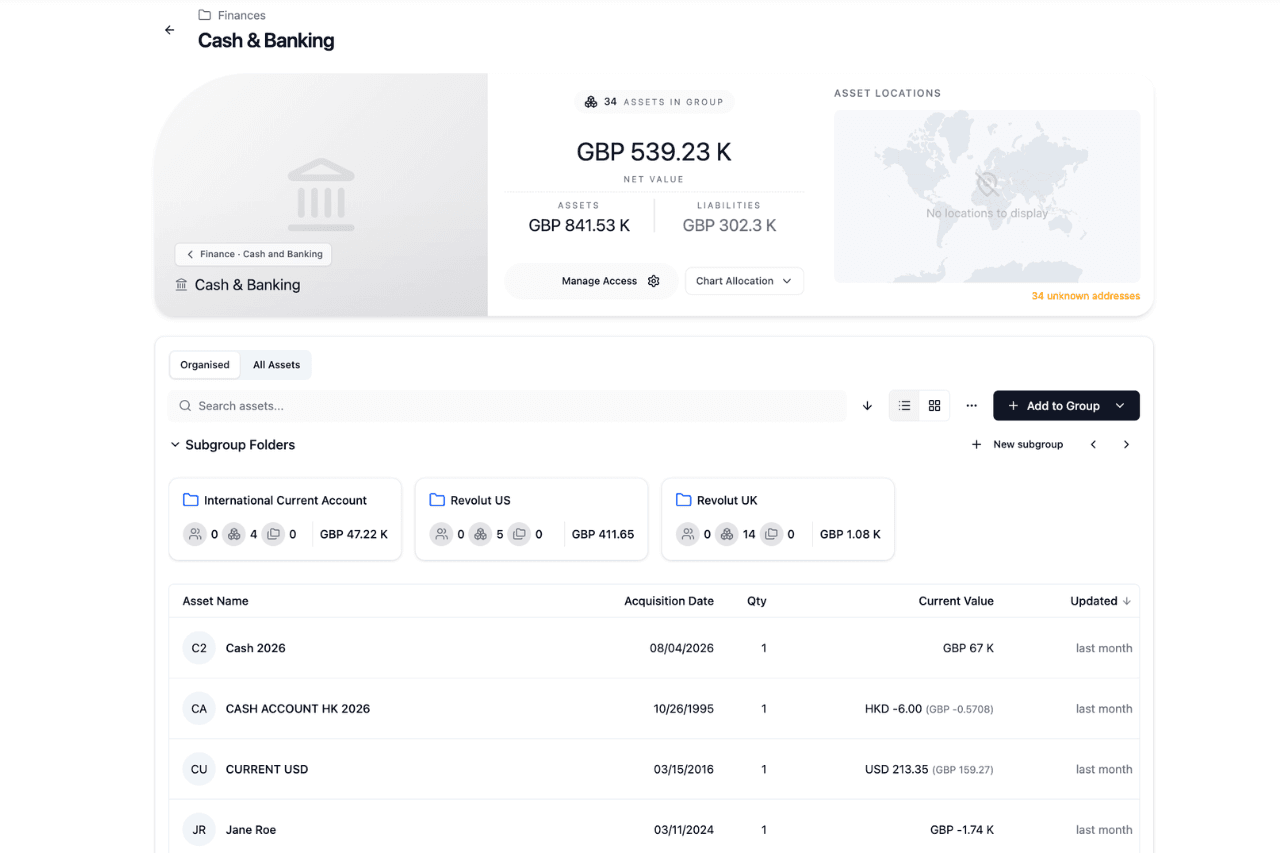
This wide range of options ensure that you can add most, if not all, types of bank institutions connected to your wallet (or mobile banking app). You get a better sense of your cash flow by tracking the growth or outstanding balance of these banking accounts.
On the other hand, automatically connected institutions reflect the current balance in your accounts, and are updated accordingly if there are any changes.
Traditional Investments
As its name implies, Traditional Investments caters to conventional assets that investors usually have in their portfolios: stocks, cryptocurrencies, cash equivalents. This subcategory gives you an easily accessible digital record of your investment portfolios.
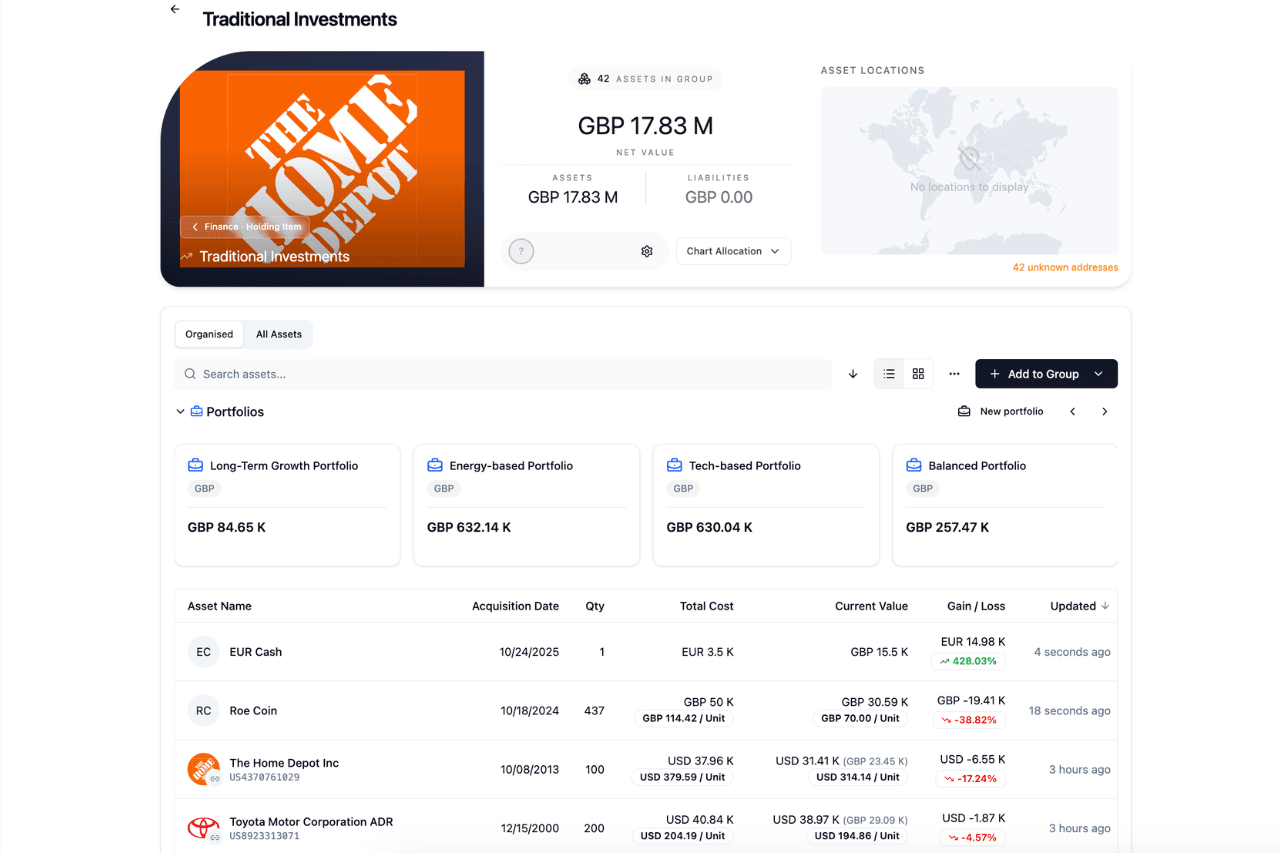
For seamless investment management, we’ve included three subcategories under Traditional Investments:
- Stocks: This includes both publicly traded shares and private shares.
- Crypto: This includes coins from decentralised networks and tokens from closed networks.
- Cash: This includes cash securities and equivalents that you own.
You can create portfolios and add any combination of Traditional Investments within. For example, you can create a Long-Term Growth Portfolio that includes a balanced mix of stocks, cryptocurrencies, and cash equivalents.
You can also track and update the total contributions and total withdrawals for your Traditional Investment portfolios, giving you an overview of your unrealised gains and losses and return on invested capital.
Other Investments
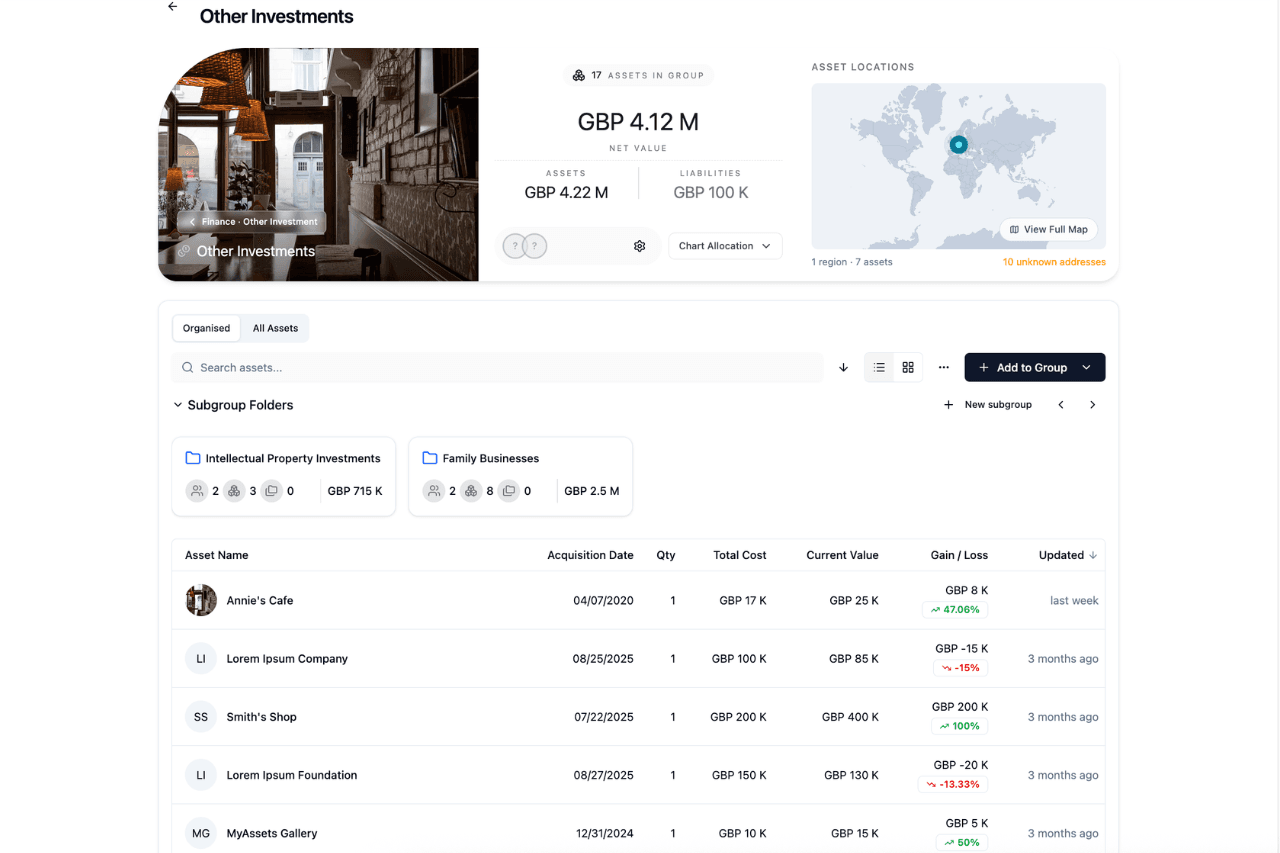
Other Investments serves as a catch-all for unconventional assets that otherwise don’t fit under Traditional Investments.
We’ve narrowed down the number of Other Investments to five types:
- Share: Include the Share Class, Number of Shares, Purchase/Acquisition Details, and Valuation
- Warrant: Include Warrant Type, Strike Price, Number of Warrants, Purchase/Acquisition Details, and Valuation
- Option: Include Option Type, Strike Price, Number of Options, Purchase/Acquisition Details, and Valuation
- Percent of Company: Include Ownership in Percentage, Investment amount, Purchase/Acquisition Details, Valuation
- Other: Include Investment amount, Purchase/Acquisition Details, Valuation
Examples of Other Investments you can include are intellectual property, family businesses, hedge funds, or even private credit (i.e. debt financing provided by non-bank institutional lenders).
Coming Up: Familiarise Yourself with the Platform Features
Each category ensures the platform caters to every asset type. Now that you understand how the MyAssets categories work, it’s time to learn about the other features you’ll find in the platform. This ensures that you make the most of your MyAssets account, ensuring that you’re using the platform to the fullest.
Read our third, and last, article in this set: how to use the platform’s key features.


